
Authentication Setup
Add your API token and configure authentication between Salesforce and the Proff API.
The next step after installing Proff Connect is to add your unique API token provided by Proff. This token enables secure communication between your Salesforce org and the Proff Premium API.
Add Your API Token
- Navigate to the Proff Connect application in Salesforce.
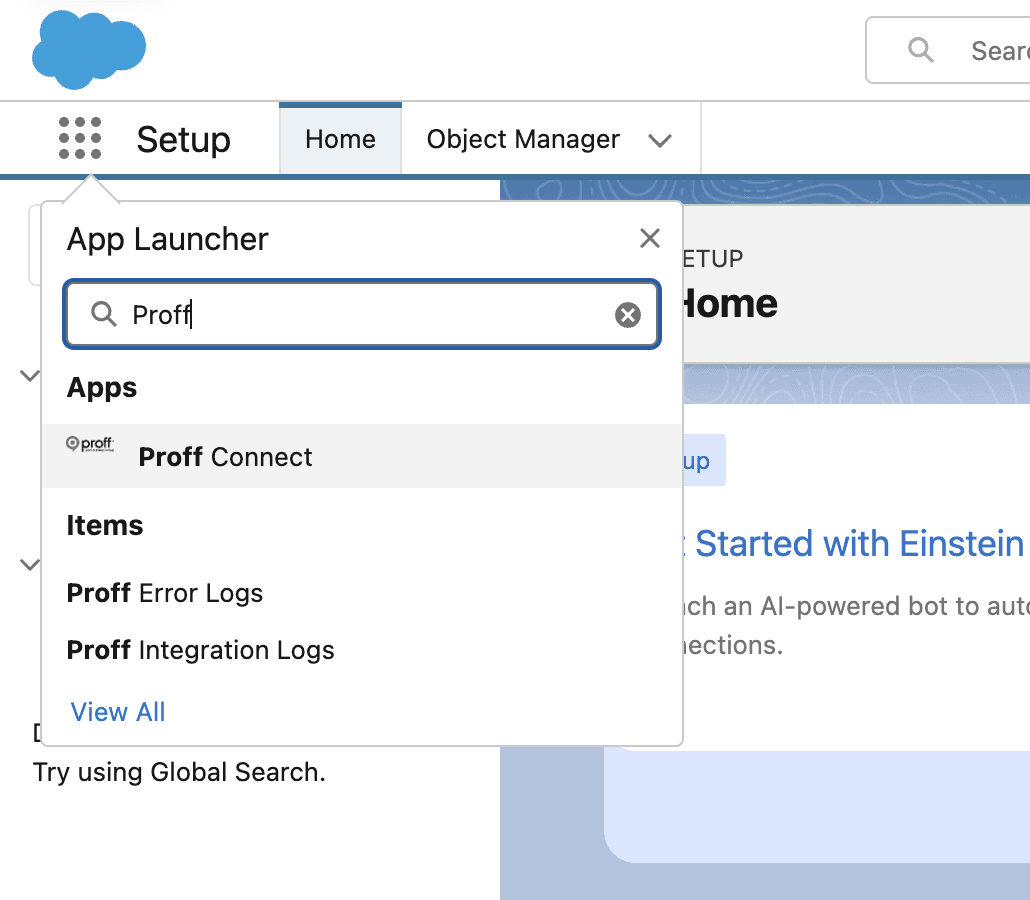
- Open the General Setup tab.
- Enter your API token into the Lightning Web Component (LWC) field.
- Click Save to confirm.
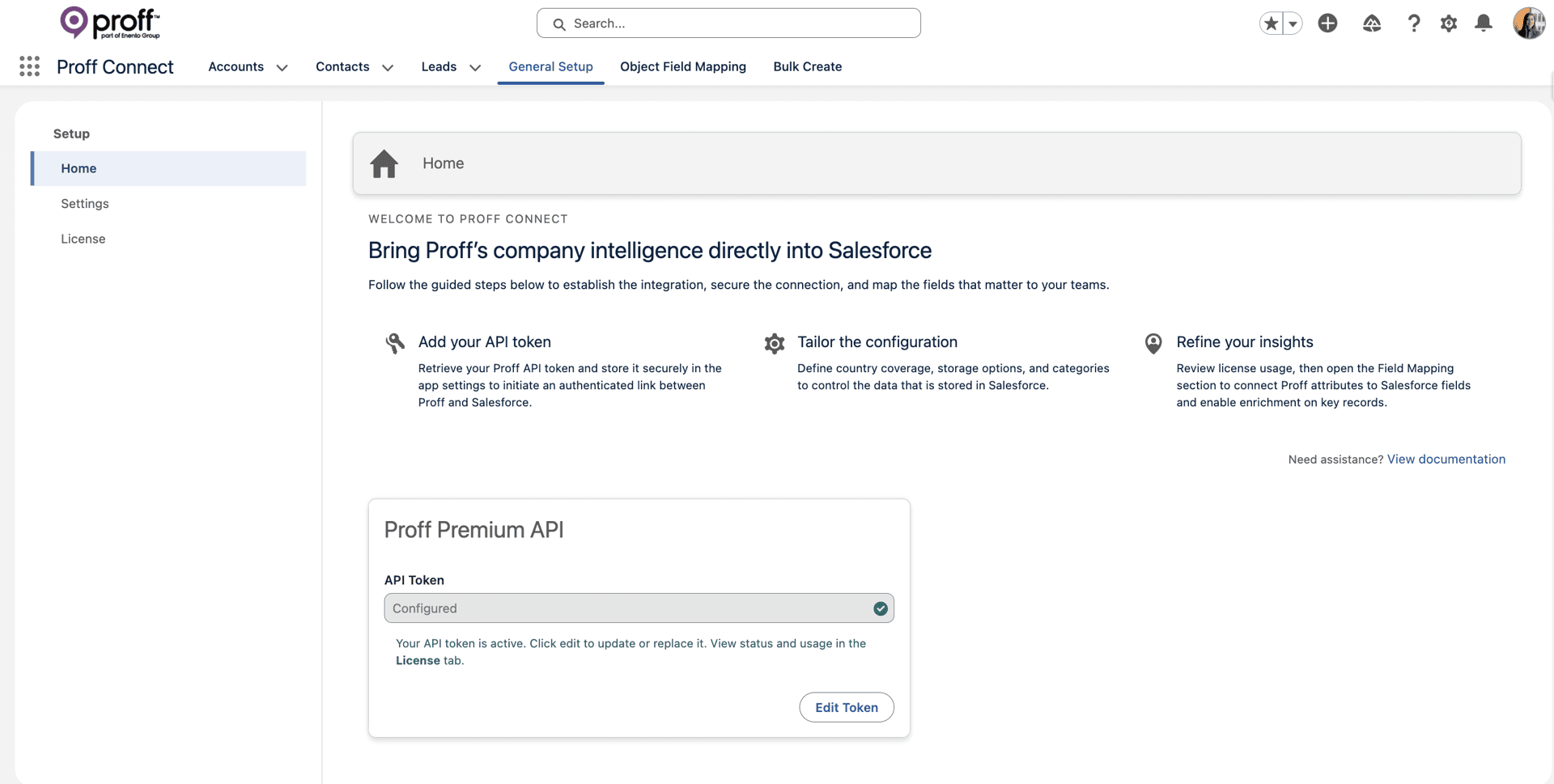
Once saved, your organization will be authenticated with the Proff API.
Rotate API Token
The solution only stores the currently active API token. To rotate or replace the token, simply click Edit and enter the new token.
Note
No historical or inactive tokens are retained by the solution. If you manage multiple Proff API tokens, please ensure that any previous tokens are securely stored or archived within your internal systems.
Remove API Token
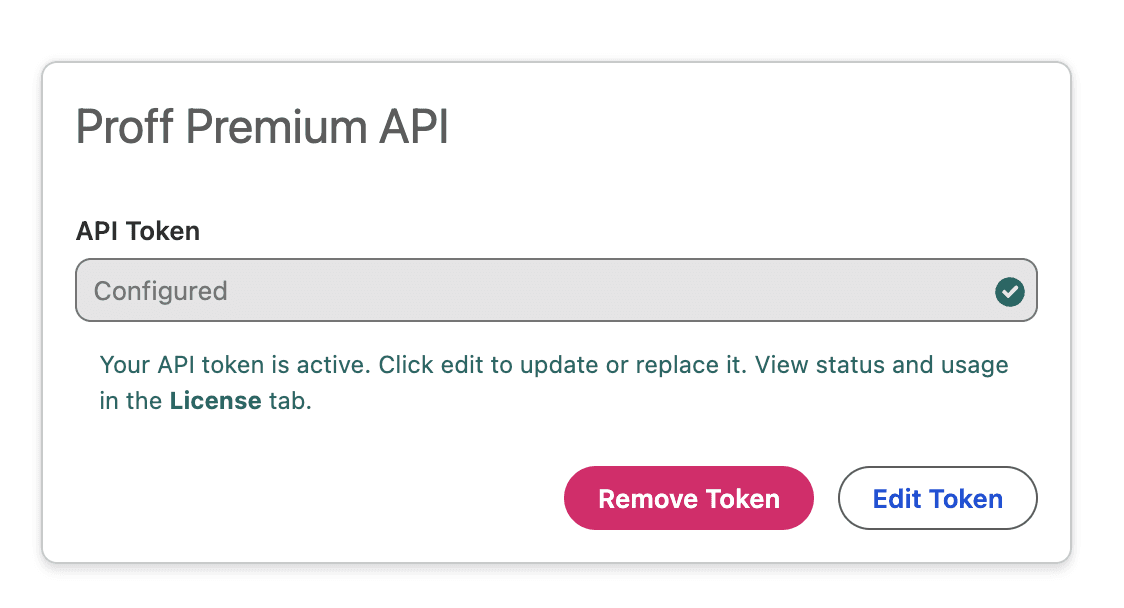
If you need to disconnect the service or permanently remove the credentials from your system, you can use the Remove Token feature.
- How it works: Clicking "Remove Token" will instantly clear the stored credential from your Salesforce org.
- What it means: Once the token is removed, the Proff Connect integration will stop working immediately. You will not be able to use the solution until a new token is added.
- Who can do this: The "Remove Token" button is only visible to users who have the Proff Connect Remove Token permission. This ensures that the connection cannot be broken by accident or by unauthorized users.
Note
Deleting a token is a permanent action. If you manage multiple tokens, please ensure that you have your credentials securely archived in your own internal systems before removing them from Salesforce.
Was this article helpful?