
Delete Jobs
Remove old Change and Mass Update records on a schedule to keep your org tidy.
Delete Jobs let you remove old Change and Mass Update records on a schedule. This keeps your org tidy and avoids storing more data than you need.
You configure and run Delete Jobs from the Job Center. They are part of the maintenance tools in Proff Connect.
Where to find it
Open the Proff Connect app and go to the Job Center tab. In the left-hand menu, select Delete Jobs.
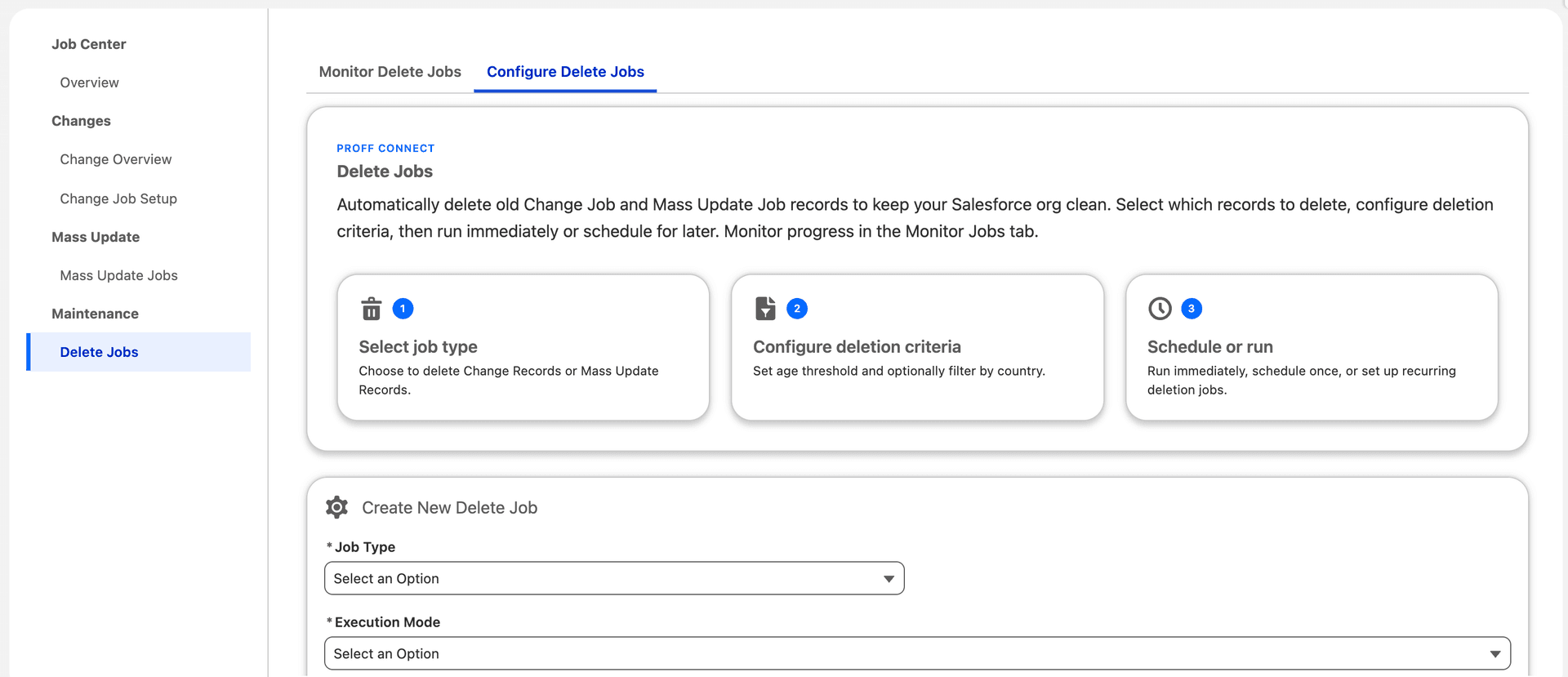
What you can configure
| Setting | Description |
|---|---|
| Job type | Choose whether to delete Change Records (from Real-Time Changes) or Mass Update Records (from Mass Update jobs). |
| Delete criteria | Set how old records must be before they are removed — for example, delete Change records older than 90 days. You can also filter by country where relevant. |
| Schedule | Run the job once, or set it to run regularly (daily, weekly, or monthly). |
Run now or schedule
You can run a Delete Job immediately or schedule it for later. For ongoing maintenance, we recommend a recurring schedule so old records are cleaned up automatically.
Pro Tip
Include Delete Jobs in your regular maintenance. For example, delete Change records older than 90 days on a monthly schedule to keep storage under control.
Related
- Real-Time Changes — creates the Change records that Delete Jobs can clean up.
- Mass Update — creates the Mass Update records that Delete Jobs can clean up.
Was this article helpful?