
Real-Time Changes
Configure scheduled jobs that automatically detect and sync changes to your Accounts based on updates from Proff.
Real-Time Changes automatically monitors your existing Accounts for updates from Proff and applies them directly — without any manual effort. You configure it once per country, and the system runs on a daily or weekly schedule from that point on.
Note
The solution uses one API call per 1,000 companies that have changed in Proff — regardless of how many of those companies exist in your Salesforce org. To identify which changes apply to your existing Accounts, the system retrieves all changes from Proff and then filters them against your Salesforce data.
Where to find it in the Job Center
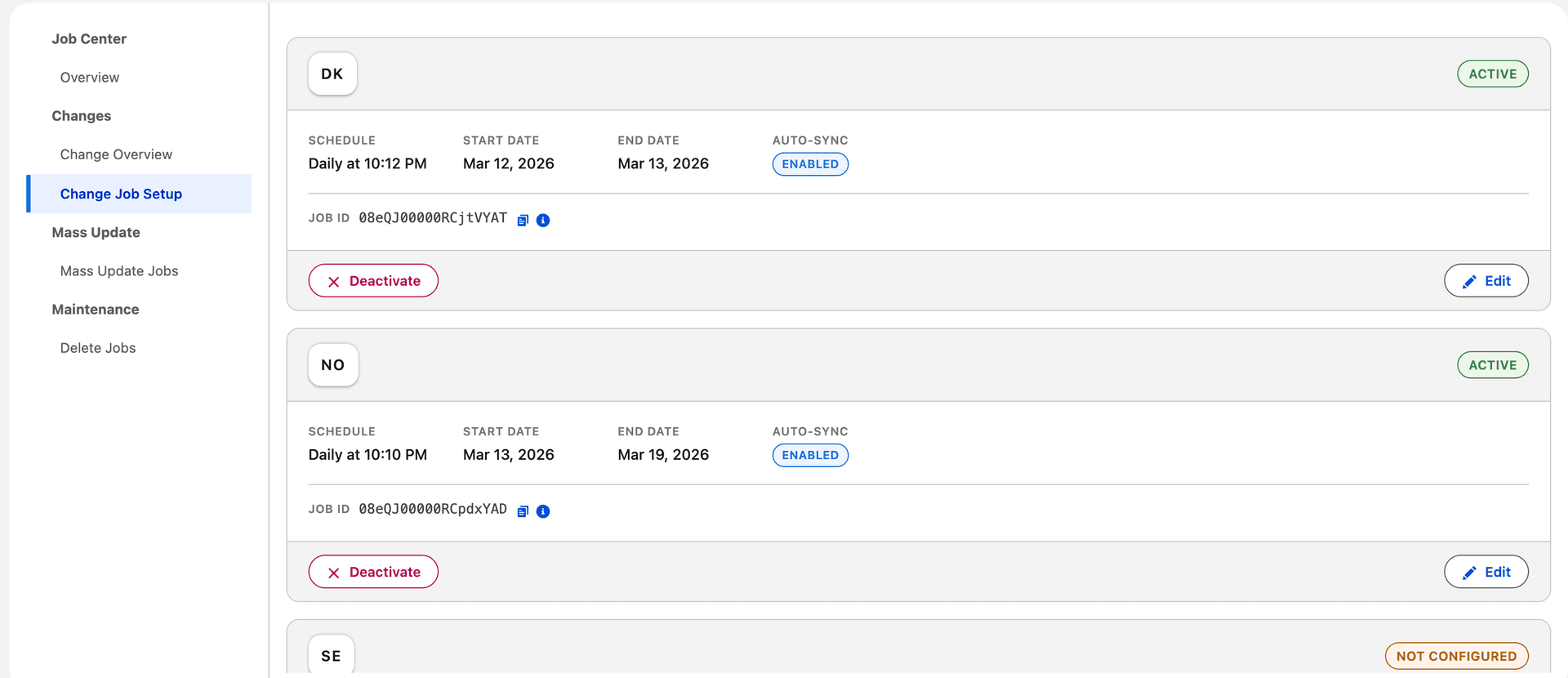
Configure jobs: In the Job Center, open Change Job Setup in the left menu. You see one card per supported country. For each country you can configure or edit the job (schedule, frequency, start time, Sync Automatically), and activate or deactivate it.
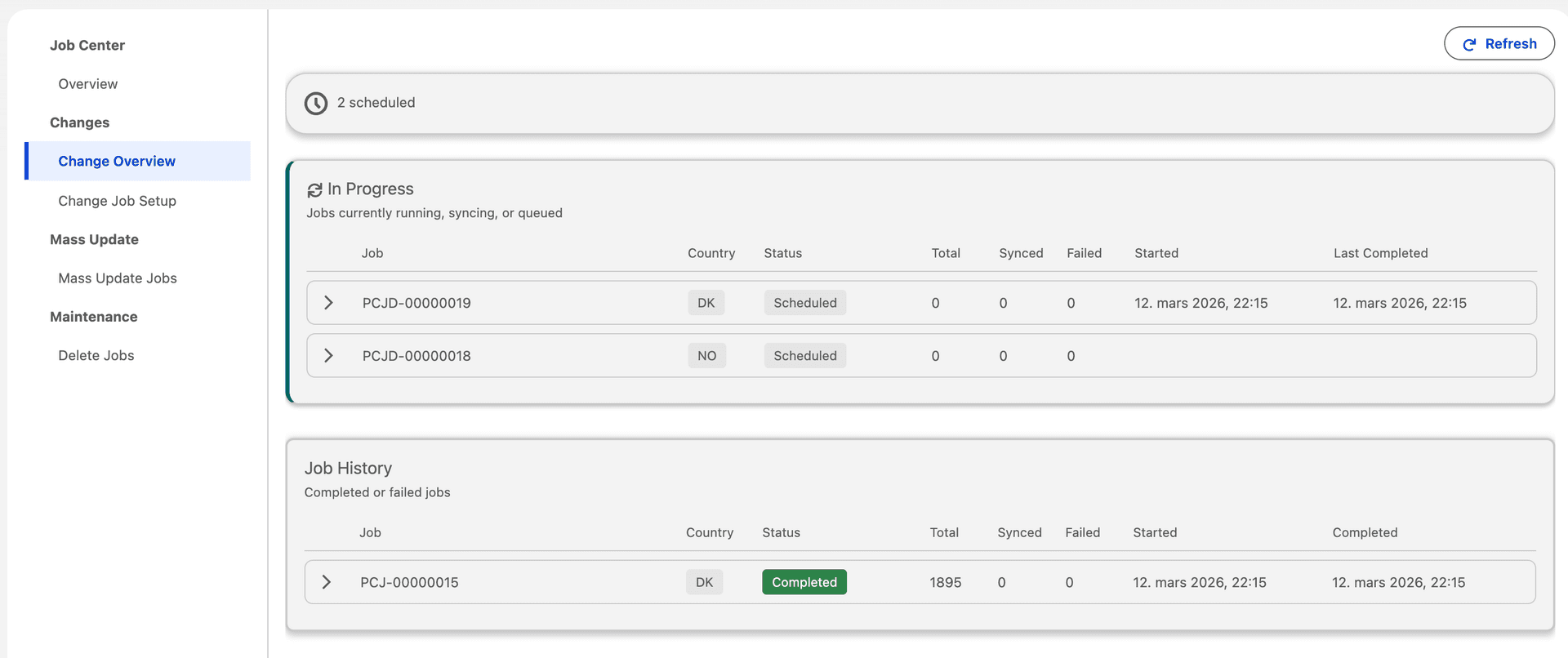
Monitor jobs: Open Change Overview in the left menu. A status banner shows how many jobs are running (or that none are running). Under In Progress you see active Change Jobs; expand a row to see its change events. Under Job History you see completed or failed jobs. You can filter events by status (All, Synced, Pending, Unmapped, Failed, Review), search by account name or organisation number, and load more for pagination.
How it works
On each scheduled run, Proff Connect fetches all company changes from Proff for the configured country since the last run. Each change is matched to an existing Account in Salesforce and — if a field mapping exists — applied automatically.
| Stage | What happens |
|---|---|
| 1 — FETCH | The scheduled job runs and retrieves all changes from Proff for the configured country since the last run. API usage is one call per 1,000 changed companies — independent of how many match your Salesforce Accounts. |
| 2 — MATCH | Each change is matched to an existing Account using Organisation Number and Country Code. |
| 3 — PROCESS | Each change is recorded as a Change Event. From version 1.5, related patches are grouped more precisely (for example one event per announcement or role entry), and old/new values are stored as readable text where possible. |
| 4 — APPLY | If Sync Automatically is enabled, mapped changes are written directly to the Account. Changes without a mapping, or that relate to Company Insight data, are flagged for review. |
What gets updated — and what doesn't
Not all changes are treated the same. Here is what Real-Time Changes does and does not handle automatically:
| Data type | Behaviour |
|---|---|
| Account fields with a valid field mapping (name, address, employees, industry, etc.) | AUTO UPDATED — Applied automatically to the Account, if enabled. |
| Company Insight data (financials, roles, shareholders, etc.) | NEEDS REVIEW — Detected and logged, but never applied automatically |
| Latest Available Financial Year | NOT INCLUDED — Financial Data is not automatically synced, but flagged when new numbers are available. |
| Changes with no matching field mapping | UNMAPPED — Logged as a Change Event — no update applied |
Note
Real-Time Changes only updates Accounts that already exist in Salesforce. It does not create new Account records.
Setting it up
You configure Real-Time Changes per country. Only one active configuration per country is allowed at a time. If you update the configuration, the existing schedule is automatically replaced — you do not need to manually deactivate anything.
| Setting | Description |
|---|---|
| Country | Which country to monitor — Norway (NO), Sweden (SE), or Denmark (DK). Finland is not currently supported. |
| Interval | How often the job runs. The frequency can be set to either daily or weekly. |
| Start Date & End Date | Defines when the scheduled job becomes active and when it stops running. The End Date can be set far in the future if no specific end is required. |
| Start Time | For scheduling what time of day the job is set to run. We recommend running outside of business hours. |
| Sync Automatically | When enabled, mapped changes are applied directly to Accounts. When disabled, changes are only logged as Change Events — nothing is written to Salesforce automatically. |
Monitoring runs and reviewing changes
Each scheduled run creates a Change Job record you can inspect — showing when it ran, how many changes were retrieved, and how many were applied, failed, or flagged.
Drill into any run to see its individual Change Events — one record per change. Each event shows exactly what changed, the old and new value, which Account was affected, and what the outcome was.
Change Event statuses
| Status | What it means |
|---|---|
| PENDING | The mapped Account field is waiting to be applied. |
| SYNCED | The change was successfully applied to the Account. |
| SYNC FAILED | The change could not be applied. See the error message on the Change Event record for details. |
| NEEDS REVIEW | Insight-related or reviewable change — logged, not applied automatically. Review manually or handle in Flow. |
| UNMAPPED | No field mapping exists for this change — logged but not applied. Add a mapping to have it applied in future runs. |
How Change Events are grouped (v1.5)
| Type | Examples | Result |
|---|---|---|
| Indexed detail | Announcements, roles, shareholders, mortgages | One Change Event per entry (e.g. /announcements/0) |
| Composite | Status, address, phone | One Change Event with a summarized value |
| Single mapped field | Name, turnover | One field-level event with sync status |
New Value / Old Value use formatted text where possible (e.g. ARSO — Godkjente årsregnskap (24.06.2026)).
Notify on changes with Flow
Build a record-triggered Flow on Proff Change Event (A record is created).
Filter on Related Object = Announcements and New Value Starts With your code (for example ARSO).
Note: you get one notification per matching Change Event (per Account). For a daily or weekly summary email, use a schedule-triggered Flow instead.
→ Alert on Change Events with Flow
Frequently asked questions
How many API calls does each run use?
One API call per 1,000 companies that have changed in Proff — regardless of how many of those companies exist in your Salesforce org. The system must retrieve all changes from Proff to identify which ones apply to your existing Accounts, then filters and applies only the relevant ones. This remains far more efficient than syncing each Account individually.
Which countries are supported?
Norway (NO), Sweden (SE), and Denmark (DK). Finland (FI) is not currently supported by the Proff Changes API.
What if I don't want changes applied automatically?
Disable Sync Automatically. The job will still run and log all detected changes as Change Events, but nothing will be written to your Accounts. You can review every change and decide what to act on.
Will Company Insight data be updated automatically?
No. Changes related to Company Insight (financials, roles, shareholders, etc.) are logged as Needs Review and never applied automatically. To refresh Company Insight, sync the Account manually or use Mass Update.
What if a change has no field mapping?
It is logged as Unmapped. No update is applied. If you want this change type to be applied automatically in future runs, add the corresponding mapping in Object Field Mapping.
Will it create new Accounts?
No. Real-Time Changes only updates Accounts that already exist in your Salesforce org. To create Accounts from Proff data, use Company Search or Bulk Create.
Can I have multiple configurations active at the same time?
You can have one active configuration per country. So you can run Real-Time Changes for Norway, Sweden, and Denmark simultaneously — but not two separate configurations for the same country.
Was this article helpful?