
Sync Account
Add the Sync Account action to update Account records with latest Proff data.
Required Fields for Sync Account
The Sync Account action requires the following fields to be populated on the Account record:
- Org Number / Company ID
- Country Code
Adding the Sync Account Action
The Sync Account action can be added to your Salesforce setup in different ways, depending on how your Account Lightning Page is configured and how you want the action to appear.
Option 1: If You Are Not Using Dynamic Actions
If your Highlights Panel is not using Dynamic Actions, you must add the Sync Account action through the Page Layout in Object Manager.
How to check: Click the Highlights Panel on your Account Lightning Page. If you see a message saying "Upgrade to Dynamic Actions", then Dynamic Actions are not enabled.
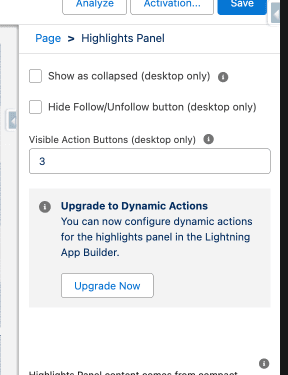
Steps to add Sync Account via Page Layout:
- Navigate to Setup → Object Manager → Account → Page Layouts.
- Open the Page Layout you want to modify.
- (Tip: Use Page Layout Assignment to see which layout is assigned to each profile and record type.)
- In the right-hand panel, click Mobile & Lightning Actions.
- Drag the Sync Account action down to the Salesforce Mobile and Lightning Experience Actions section.
- If this is your first time modifying actions on this layout, click Override the Predefined Actions before making changes.
Note
You might need to click "Override the predefined actions" if it is the first time changing the actions on this page layout.
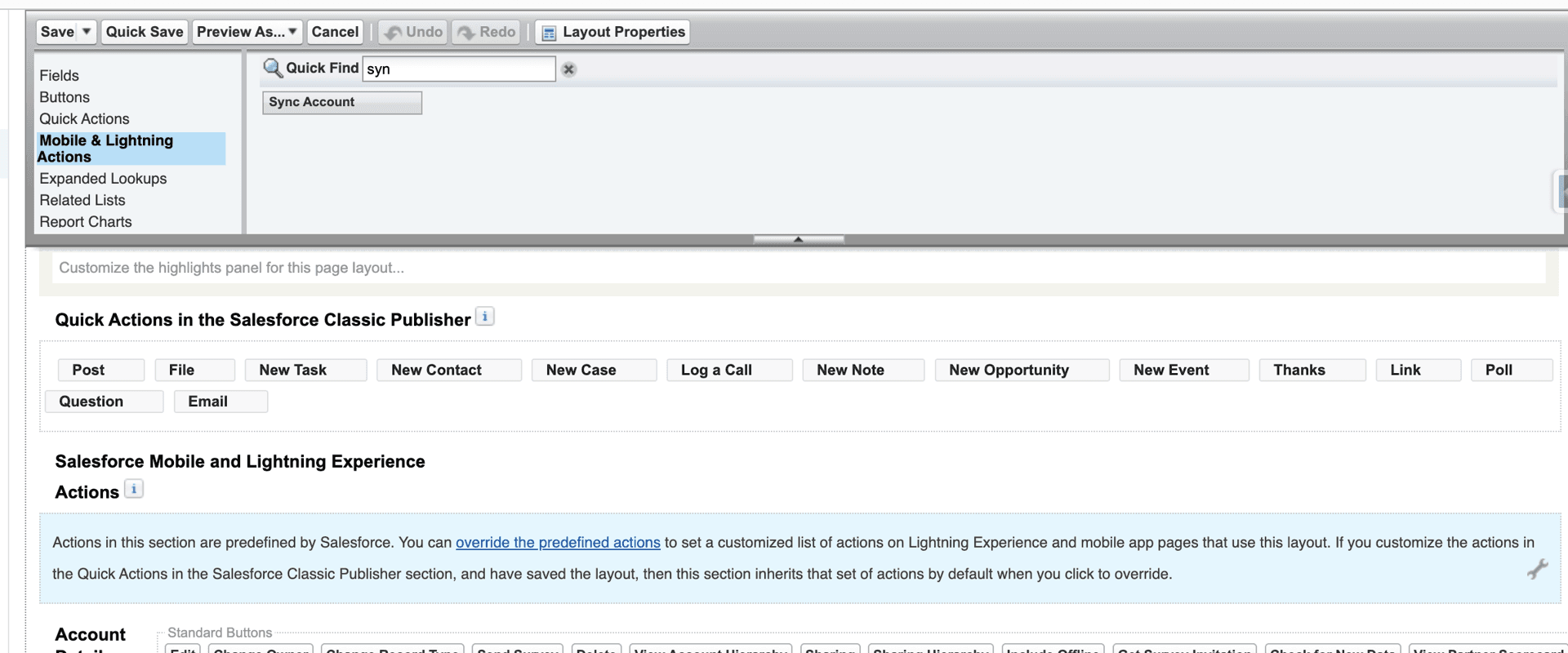
Option 2: If You Are Using Dynamic Actions
If Dynamic Actions are enabled for your Highlights Panel, you can add the Sync Account action directly from the Lightning Page.
Steps to add Sync Account via Dynamic Actions:
- From the Account Lightning Page, click on the Highlights Panel.
- Scroll down in the right-hand configuration panel and click Add Action.
- Search for and select Sync Account.
- Arrange the actions in your preferred order, ensuring Sync Account is visible where you want it.
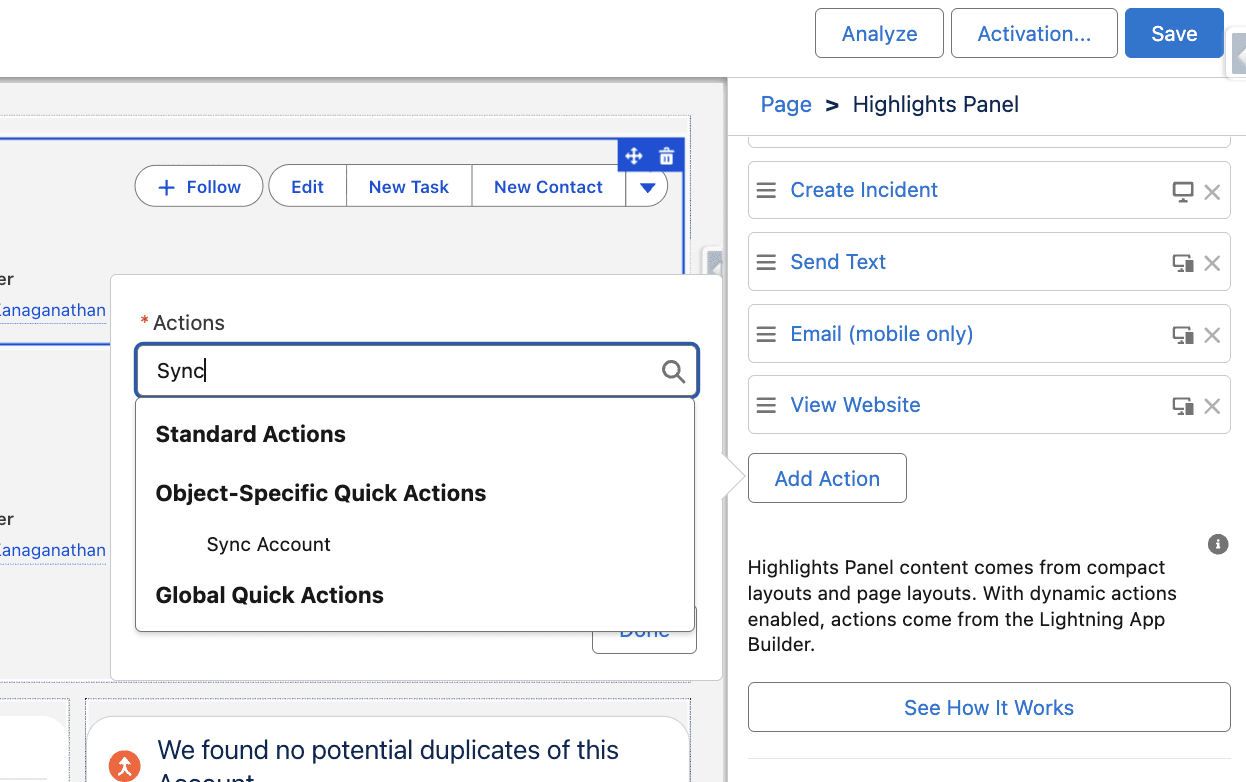
Result
Once added, the Sync Account action will be available for use directly on the Account Lightning Page.
Was this article helpful?